


Screen Recorder Video Recorder
4.434.89K Reviews
App Specs
- Version
- 8.3.0.0
- Updated On
- License
- Free
- Downloads
- 100,000,000+
- Developer
- VIDEOSHOW Video Editor & Maker & AI Chat Generator
- Categories
- Video Players & Editors
- Platform
- Android, iOS
Screenshots

 Analysis by AppCompare
At home, screen recording often starts as a small favor: a child wants to show a relative a game move, someone needs to explain a confusing phone setting, or I want to save a short clip before it disappears. Screen Recorder Video Recorder is aimed at those quick captures, but a shared phone adds a practical question: who is recording, what is included, and where does the finished video go? I’d treat it as a handy tool for specific tasks, not as a reason to record everything on a household device.
One phone, several people, different recording needs
A screen recorder can be useful when a family member cannot easily describe what they see. I might capture the steps for changing a setting, then send the clip to someone who can follow along at their own pace. For a game, a player can save a successful run and show it later instead of trying to recreate the moment. In both cases, the useful result is a short, purposeful video—not a long recording that is difficult to find or share.
That distinction matters on a device used by more than one person. Before starting, I’d agree on what the recording is meant to show and who will receive it. A notification, message preview, or account screen can appear while recording, so it is worth closing unrelated apps and checking the visible screen first. This simple pause can prevent a helpful tutorial from also exposing something private.
Guides and Analysis on Screen Recorder Video Recorder
Set expectations before tapping record
The app’s controls and editing tools make it tempting to start immediately, but I get better results by deciding the clip’s purpose first. For a how-to, I would rehearse the steps once, then record the clean version and trim away the opening or any dead time. For gameplay, I would check the chosen audio approach before a longer session, since microphone commentary and the game’s sound serve different purposes. A brief test clip is a sensible way to catch an unwanted recording setup before committing to a full take.
On a shared device, people should also know where a finished recording is being kept and whether it is going to be shared. I would not assume everyone using the phone has the same account boundaries or wants their activity captured. The app is a recorder and editor; household coordination still comes from the people using it. If a recording contains another person’s voice, messages, or personal details, get their agreement before sending it beyond the device.
Who will find it useful—and who may not
I can see this working well for casual players, people who make simple tutorials, and anyone who regularly explains phone tasks remotely. The built-in editor is especially convenient when the goal is a trimmed clip with music rather than a polished production. It keeps capture and basic cleanup together, which is useful when I want to send an answer quickly instead of moving a file into a separate editing app.
It is less suited to someone who needs a carefully controlled production workflow, extensive post-production, or a dedicated desktop editing setup. A phone recorder can capture what is on the display, but it does not replace planning, a quiet recording space, or a more capable editor when a project needs detailed pacing and sound work. If I only need to record an occasional screen, the phone’s built-in recorder may also be enough; a separate app makes more sense when its capture controls and immediate editing are worth having in one place.
Worth Reading Before You Choose

Ludo King Makes the Most of the Minutes Between Plans

Baby Panda World Brings Quick Play to Modern Phones, but Its Game Library Feels Busy

ESPN’s Live Game View Makes Following Close Games Easier

QuizzLand Review: A Good Fit for Short Trivia Breaks, Not Every Player

Basketball Stars: Multiplayer Is Fast, but Can It Recover When Matches Go Wrong?

WEBTOON Turns Phone Updates Into a Better Reading Routine
For shared-device households, age and trust deserve the same attention as convenience. The app is rated for Everyone, but that does not mean every recording is suitable for every viewer or that a child should share clips without guidance. I’d show younger users how to stop a recording, review it before sending, and avoid including private conversations or account details. The rating is a content classification, not a substitute for a family’s own rules about recording and sharing.
What to check before sharing a clip
Editing on the phone can make a recording more useful, but it is also where a little care pays off. I would trim the clip to the relevant section, watch it once from beginning to end, and listen for audio that should not be there. If the aim is to teach a relative, a short clip with one clear action is usually easier to follow than a continuous recording of every attempt. If the clip is only for personal reference, there may be no need to upload or forward it at all.
When a video is meant for a group chat or a public platform, I’d check the destination and audience before sharing. A fast sharing route is convenient, but convenience can make it easy to send the wrong take or an unedited screen. Keeping a clear distinction between a draft and a clip ready to send is a useful habit, particularly when more than one person uses the phone.
The practical choice is between this kind of all-in-one recorder and a simpler built-in tool. A built-in recorder may be quicker for a one-off capture and avoids adding another app to the routine. A dedicated option is more appealing when I want recording controls, a facecam option, or an editor close at hand. For advanced creators, a separate editing app or computer workflow is likely to provide more room to refine the result. The right choice depends less on a feature checklist than on how often the household records and what it does with the clips afterward.
There are a few useful habits that make the workflow less frustrating. I would record a short sample before a long session, especially if sound matters; keep the phone’s screen focused on the intended app; and stop promptly once the useful moment is captured. After editing, I’d check that the start and end are clean and that the video makes sense without extra explanation. These steps do not require technical expertise, but they can save time and reduce accidental oversharing.
A shared routine that stays manageable
In an everyday example, imagine a relative asking how to change a setting they cannot find. I can record the path through the menus, trim the pause where I look for the option, and send only that short explanation. If another household member uses the same phone, I would first make sure their messages or account screens are not open, then review the finished clip before sharing. The recording becomes a practical instruction rather than a broad capture of whatever happened to be on screen.
Coordination matters after the clip is made, too. If several people record on one device, agreeing on a simple naming or cleanup habit can make it easier to distinguish a useful tutorial from an old gameplay capture. I would avoid leaving a pile of unfinished takes for someone else to sort through. The app can help with recording and editing, but it cannot decide which files the household should keep or who has permission to distribute them.
What the app is, and what it costs to use
As a video recording and editing app from VIDEOSHOW Video Editor & Maker & AI Chat Generator, it sits in the video-player and editing space while focusing on capturing the phone screen. It is free to install, has an Everyone age rating, and includes in-app purchases that range from $0.99 to $179.99 per item. I would check the purchase screen carefully before confirming anything, particularly on a device used by children or several family members. The app’s free availability is convenient, but it does not mean every optional item is free.
The current version is 8.2.2.3 and it requires Android 5.0 or later. It has been available since June 5, 2018, and its broad adoption—over 100 million installs and an average rating of 4.4 from around 1.7 million ratings—suggests that screen capture is a familiar use case for many people. Those figures do not tell me whether its particular controls suit my device or habits, so I would still try a short recording before relying on it for an important demonstration.
One point worth deciding in advance is whether a clip needs voice at all. For a silent menu walkthrough, adding commentary can distract from the steps; for a gameplay tip, a spoken explanation may be the whole point. I’d choose the audio approach to fit the viewer, then review the result with headphones if the sound is important. This avoids discovering only after sharing that the clip is hard to understand or includes more background conversation than intended.
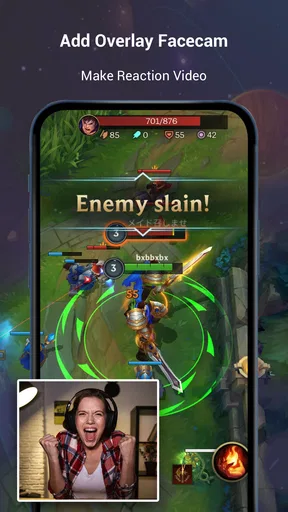
There is also a trade-off between a facecam reaction and an uncluttered screen. A facecam can make a gameplay clip feel personal, but it takes attention away from a small interface or detailed tutorial. For instructions, I would usually prioritize the screen and use clear narration instead. For a casual gaming moment, the reaction may add context. Treating those as different formats makes the app’s options more useful than switching them on by default.
For anyone wondering whether it is appropriate for younger users, my answer is that the rating is only one part of the decision. A child may be able to make a simple capture, but should still understand that recordings can reveal notifications, names, or conversations. I would set household expectations around asking before recording other people and checking a clip before sharing it. That guidance is more important than handing over the controls and assuming the age label settles every privacy question.
Ever found yourself in a situation where you desperately needed to capture what's happening on your phone screen? Whether it's a killer game combo, a tricky tutorial walkthrough, or just a funny chat with a friend, having a solid screen recording app is a lifesaver. Enter Screen Recorder Video Recorder, a nifty tool designed to make capturing your screen a breeze.
The First Impression: Sleek and User-Friendly
From the moment you open Screen Recorder Video Recorder, it’s clear that user experience is top of mind. The interface is clean and intuitive, which is a refreshing change from some of the clunky alternatives out there. You won’t be lost in a maze of settings—everything is right where you’d expect it to be.
Quick Setup and Easy Navigation
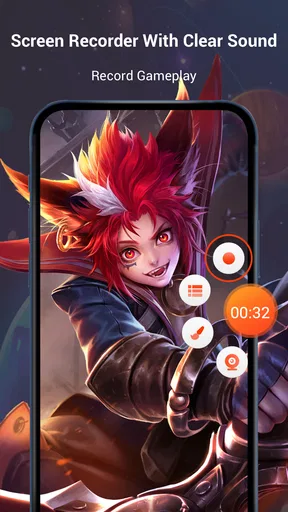
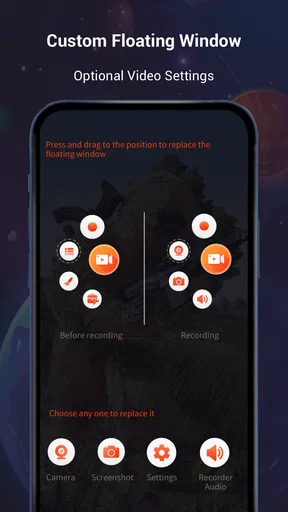
Getting started is as simple as it gets. After installation, a quick setup guide walks you through the basics. The app offers a floating control button that remains on your screen for easy access. Trust me, having those controls at your fingertips makes a world of difference when you’re trying to capture something in real-time. No fumbling through menus—just tap and go!
Feature-Packed Goodness
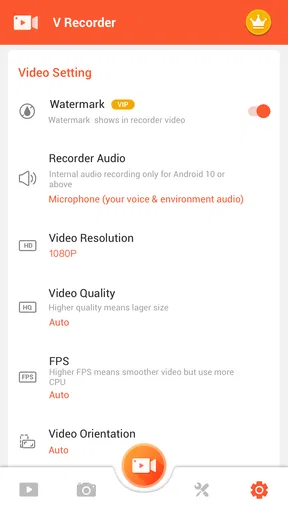
Let’s talk features. This app isn’t just about hitting record and hoping for the best. You can customize your video quality, choose to record audio from your mic, and even add facecam reactions to your recordings. Ever wanted to add some commentary to your gameplay? Now you can, and it’s as easy as pie.
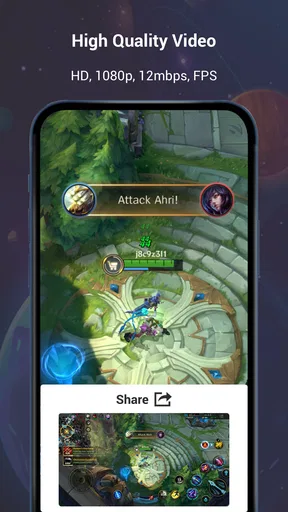
- High-Quality Recording: Choose from different resolutions, frame rates, and bit rates to get the perfect video quality.
- Audio Options: Record internal audio or use your microphone to add commentary.
- Facecam Integration: Add a personal touch with facecam reactions.
Editing On-the-Go
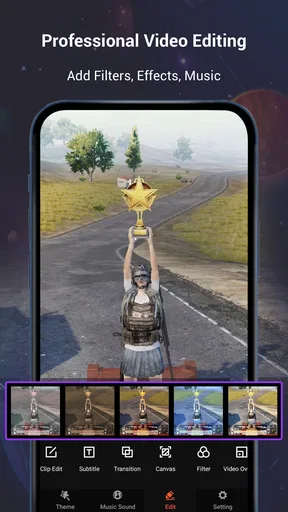
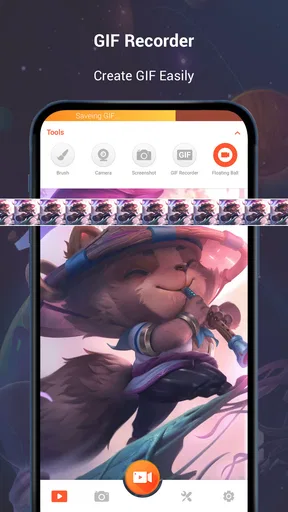
One of the standout features for me is the built-in video editor. After you’ve captured your screen, you can jump straight into editing. Trim, cut, or add music—everything you need to polish your video is right there. It’s perfect for those moments when you need to make quick edits before sharing with friends or uploading online.
Sharing is Caring
Once you’ve got your masterpiece ready, sharing it is a cinch. The app supports direct uploads to platforms like YouTube and social media, saving you the hassle of transferring files. Plus, you can share directly via messaging apps. It’s all about making life easier, right?
The Verdict: A Must-Have Tool
So, what’s the bottom line? If you’re in the market for a reliable, feature-rich screen recording app, Screen Recorder Video Recorder ticks all the boxes. Whether you’re a gamer, a vlogger, or just someone who loves capturing moments on their screen, this app has got your back.
With its user-friendly design, robust features, and seamless sharing options, it truly stands out in a crowded field. Give it a try, and you might find yourself wondering how you ever managed without it. Happy recording!
Pros
- User-friendly interface simplifies recording.
- High-quality video output with minimal lag.
- Offers multiple recording formats.
- Includes editing tools for quick adjustments.
- Supports facecam for tutorials and vlogs.
Cons
- Ads can be intrusive during use.
- Limited free features; many require purchase.
- Occasional crashes on older devices.
- Audio sync issues reported by some users.
- Large file sizes can fill storage quickly.
FAQs for Screen Recorder Video Recorder
What features does the Screen Recorder Video Recorder offer?
The Screen Recorder Video Recorder app provides a comprehensive suite of features including high-definition screen recording, live streaming, and video editing tools. Users can capture audio alongside video, utilize face cam for reaction videos, and edit footage with trimming, merging, and adding background music. This makes it versatile for both casual users and content creators.
Is Screen Recorder Video Recorder free to use, or does it have in-app purchases?
The app is free to download and offers essential recording features at no cost. However, for advanced capabilities such as ad removal, additional editing tools, and higher resolution recording, users may need to purchase a premium subscription or individual features through in-app purchases.
How user-friendly is the Screen Recorder Video Recorder for beginners?
The app is designed with user-friendliness in mind, featuring an intuitive interface that guides users through the recording process. Beginners can easily start recording with one tap. In-app tutorials and guides are available to help new users understand and utilize the various features efficiently.
What platforms support Screen Recorder Video Recorder, and are there any system requirements?
Screen Recorder Video Recorder is available for both Android and iOS devices. It requires Android version 5.0 (Lollipop) and above or iOS version 11.0 and above. Users should ensure their device has sufficient storage and processing power for optimal performance, especially when recording high-resolution videos.
Does Screen Recorder Video Recorder support recording of all types of apps and games?
Yes, the app supports recording from a wide range of apps and games, including those with high-resolution graphics. However, users should be aware of any privacy policies or restrictions within specific apps that may limit recording capabilities. The app ensures smooth recording without significant impact on device performance.


